
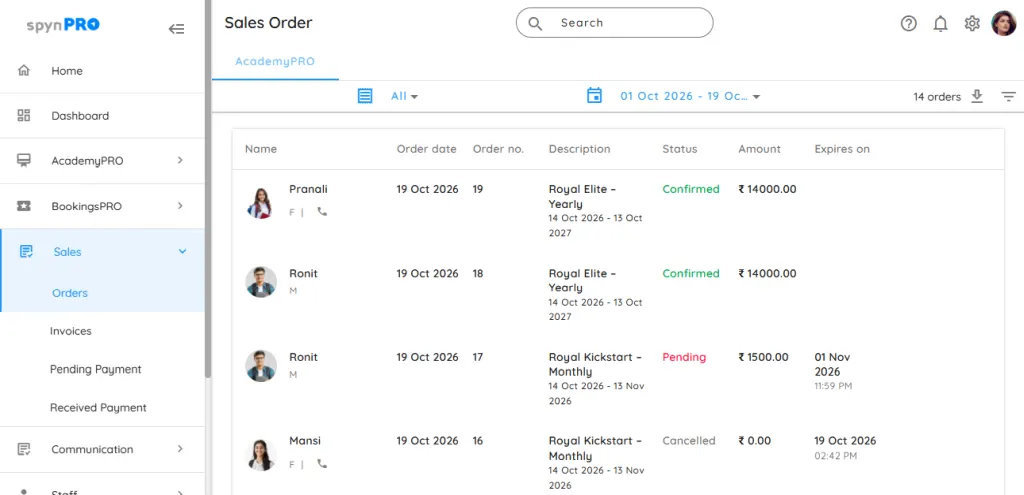
Sales Orders help you manage purchases and renewals before generating invoices. This reduces unnecessary invoice cancellations when a client decides not to proceed.
When should you use Sales Orders?
Sales Orders are useful when a purchase or renewal may not result in payment.
For example, if a student’s subscription automatically renews but they decide to discontinue, the unpaid order can expire without requiring you to cancel an already generated invoice.
Similarly, if a parent begins a subscription purchase in spyn CONNECT but does not complete payment, the purchase can remain an order until the configured expiry period or an invoice-conversion event.
Before you begin
Sales Orders must be enabled in Settings before the Orders option appears under Sales.
AcademyPRO and Items have separate settings, allowing you to configure their order workflows independently.
BookingsPRO is yet to receive this feature.
Detailed Guide
Step 1: Enable Sales Orders
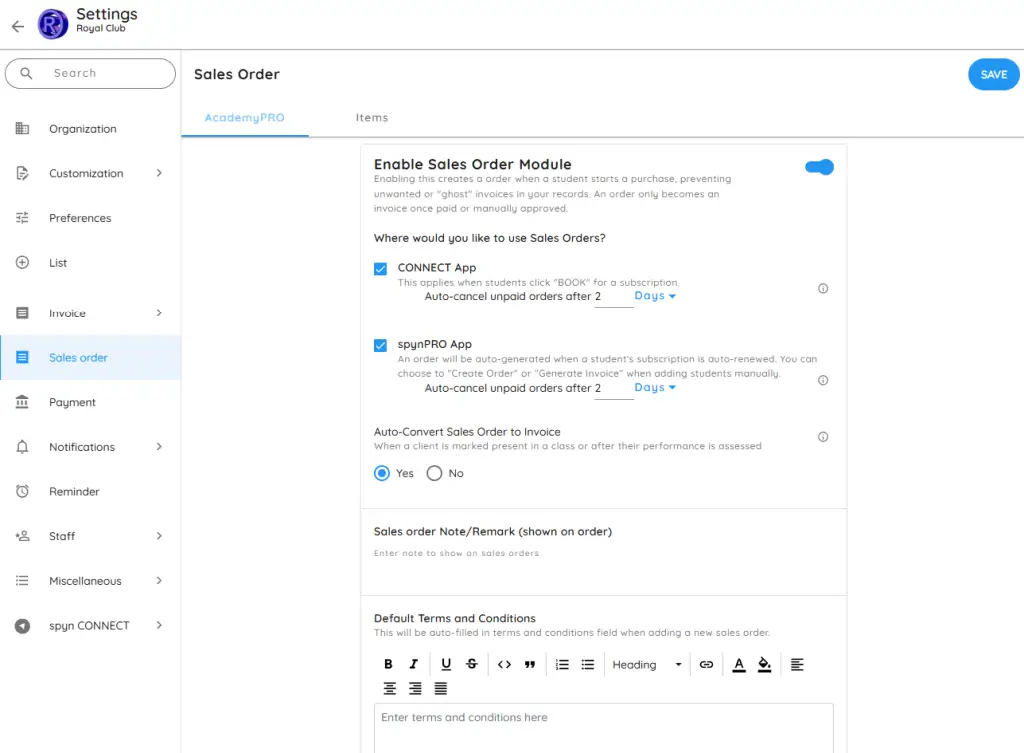
- Open Settings → Sales order.
- Select the AcademyPRO or Items tab.
- Enable the Sales Order module.
- Choose the available options for your business.
- Select Save.
Configure AcademyPRO orders
| Settings | How it works |
|---|---|
| CONNECT app | Creates a sales order when a customer starts booking a subscription through CONNECT. |
| spynPRO app | Creates a sales order for automatic subscription renewals. During manual entry, staff can choose Create Order or Generate Invoice. |
| Auto-cancel unpaid orders after | Sets how long unpaid orders remain open before automatic cancellation. You can set separate periods for CONNECT and spynPRO. |
| Auto-Convert Sales Order to Invoice | Converts an order into an invoice when a student is marked present in a batch or their performance is assessed. This can happen even before payment is received. |
Configure Items orders
Open the Items tab to enable Sales Orders for item purchases.
Staff can choose Create Order or Generate Invoice during manual entry. You can also set an automatic cancellation period for unpaid item orders.
AcademyPRO and Items have separate settings so you can configure each flow independently.
Add a note and terms and conditions
In the relevant settings tab, you can add:
- A Sales order Note/Remark to display on the order—for example, “Please make payment to confirm your purchase.”
- Default Terms and Conditions, which are automatically filled in when adding a new sales order.
Click Save after making your changes.
Find and review sales orders
Open Sales → Orders, then select AcademyPRO or Items.
Use search, the period selector and the status dropdown to find an order. Available statuses are Pending, Confirmed, Cancelled and All. The AcademyPRO filter panel also includes salesperson, pack, batch, expertise and location filters.
Open an order to review its details. For AcademyPRO, these include the customer, pack, subscription dates, fees, discounts, taxes, batches, notes and history.
Understand order statuses
| Status | Meaning |
|---|---|
| Pending | The order has not yet been converted into an invoice. |
| Confirmed | The order has been converted into an invoice. Payment may still be pending. |
| Cancelled | The order has been cancelled, including through automatic expiry. |
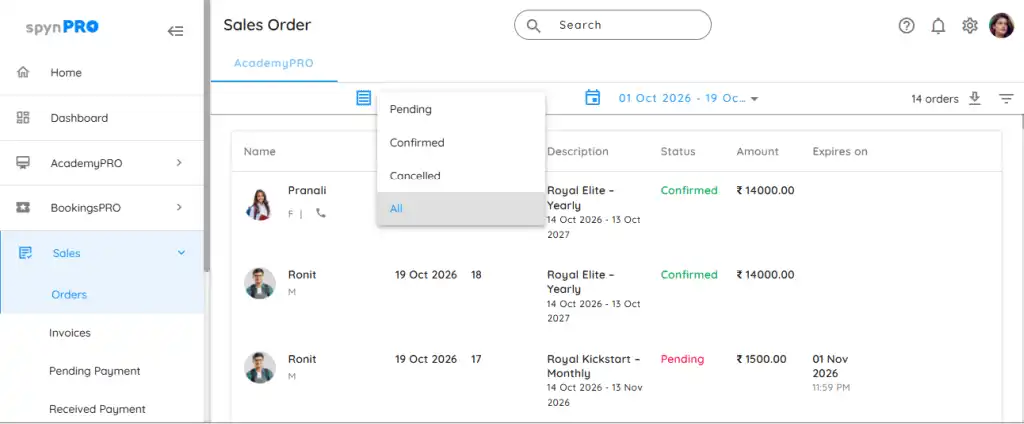
An order can become an invoice when payment is received or it is manually confirmed. AcademyPRO orders can also convert through attendance or performance assessment if that setting is enabled.
A confirmed order does not necessarily mean that payment has been received. Check the invoice’s pending amount to review outstanding payment.
Restore a cancelled order
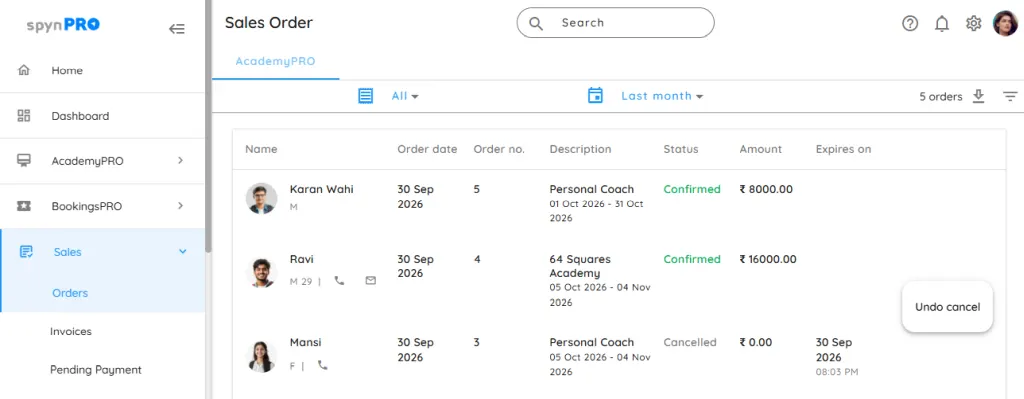
Use Undo in the cancelled order’s three-dot menu to restore it.
Frequently asked questions
Can I enable Sales Orders only in the spynPRO app?
Yes. Under the AcademyPRO settings, select spynPRO App and leave CONNECT App unselected, then save.
Students sometimes confirm after a trial but do not join. How can I avoid cancelling their invoices later?
Create a sales order while their purchase is awaiting confirmation. Convert it into an invoice when payment is received or when you choose to confirm it. Review the automatic conversion setting if you want attendance or performance assessment to trigger invoicing.
Can I add a note or terms and conditions?
Yes. Both AcademyPRO and Items settings include an order note and default terms and conditions.
Why are there two settings tabs?
AcademyPRO covers subscription orders, while Items covers item orders. Each can be enabled and configured independently.
Does cancelling an order use an invoice number?
An order that has not been converted into an invoice does not require an invoice number. Cancelling it therefore avoids creating an invoice solely to cancel it later.
Does every Sales Order require payment before an invoice is created?
No. An order can become an invoice while payment is still pending, including through the enabled AcademyPRO attendance or performance conversion setting.
Can Sales Orders be cancelled automatically?
Yes. You can configure an unpaid-order auto-cancellation period in the relevant settings.
Can I use different expiry periods for CONNECT and spynPRO?
Yes. AcademyPRO allows separate expiry periods for its CONNECT and spynPRO channels.
Can I restore a cancelled order?
Yes. Use Undo from the cancelled order’s actions menu.