
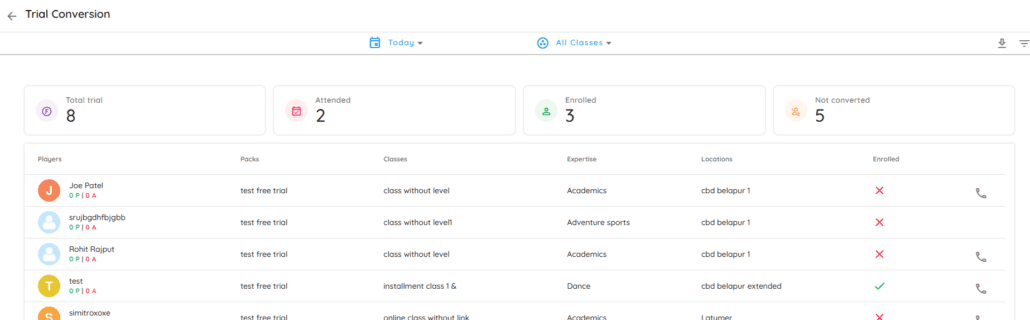
The Trial Conversion Report helps you track how many students who attended a “Trial Class” eventually signed up for a full membership. This is a great way to see if your trial classes are successful in bringing in new students.
Step 1: Find the Report
- Go to the Home screen.
- Click on Reports in the menu.
- Select Trial Conversion.
Step 2: Read the Summary Cards
At the top, you will see four quick boxes that summarize your data:
- Total trial: The total number of people who booked a trial.
- Attended: How many people actually showed up for their trial.
- Enrolled: How many people joined a full class after their trial.
- Not converted: How many people finished their trial but did not sign up yet.
Student List
The table below gives you more details about each person:
- Clients: The name of the student who took the trial.
- Packs: The specific trial plan they used (e.g., “test free trial”).
- Classes: The name of the class they attended for their trial.
- Expertise: The category of the class (e.g., Academics, Dance, or Sports).
- Locations: Which center they visited.
- Enrolled: A green checkmark (✓) means they joined a class. A red cross (X) means they have not joined yet.
- Phone Icon: Click the phone icon on the right to see their contact details so you can call them for a follow-up.
Filters
You can change the data by using the buttons at the top:
- Calendar icon: Change the date to see trials from “Today,” “This Week,” or a custom date.
- Class icon: Filter the list to see trials for only one specific type of class.
Click the Filter icon on the top right to open the sidebar. You can narrow down your list by:
- Plan: Choose a specific trial type (like “Free Trial”).
- Expertise: Filter by class category (like “Academics” or “Dance”).
- Location: Select a specific center (like “Alibag” or “CBD Belapur”).